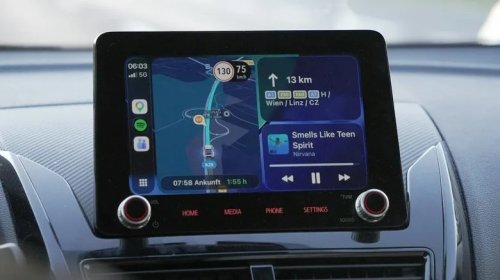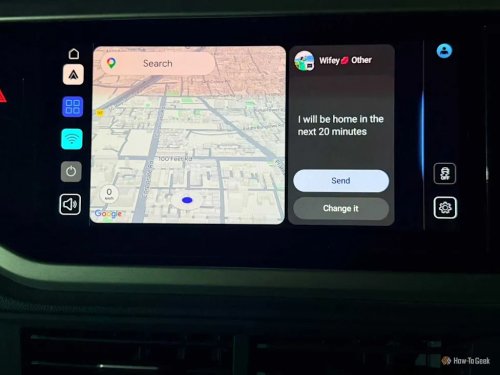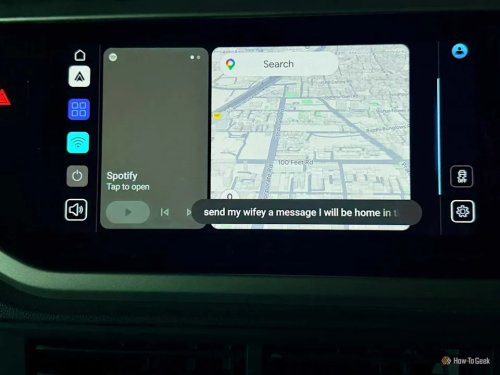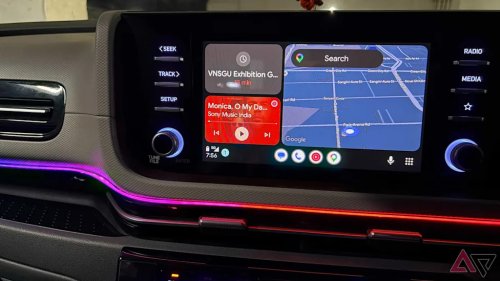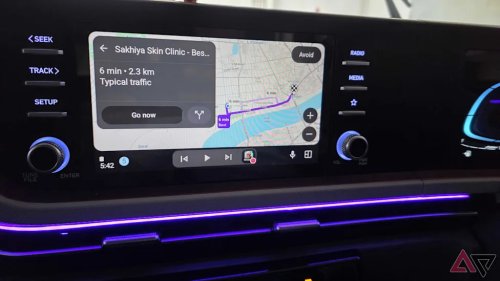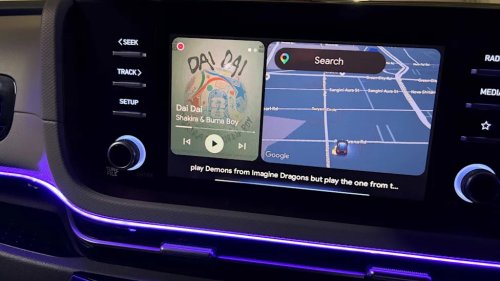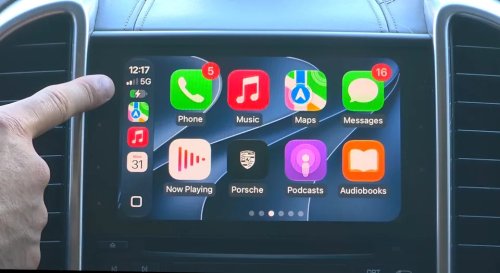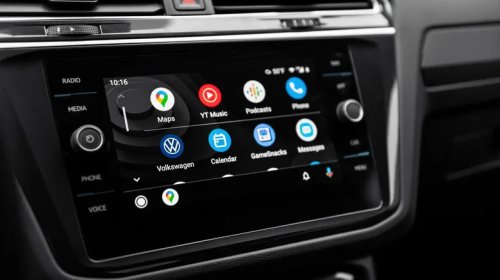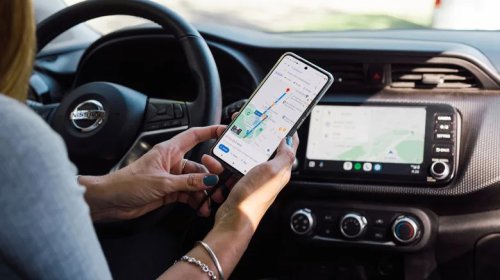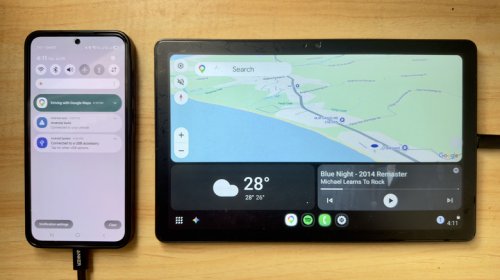


















Your Phone Can Use Android Auto Without A Car – Here's How (And Why You Should)BGRBriley KenneySun, September 13, 2026 at 4:47 PM UTCAdd us on GoogleTopuria Design/ShutterstockThe conventional way to use Android Auto is while you're driving, as it removes distractions and gives you access to several hands-free apps and services. It is called Android Auto, after all. But that minimalist experience is useful outside your vehicle, too. You can actually deploy the Android Auto system from just about anywhere, no car needed. However, you will need a certain app and two separate devices. You designate one device as a receiver, which works like a head unit or the in-dash display in your car, and the other as the transmitter, broadcasting to the first.Your next question is probably why? I'll pose a better one: why not? With everything set up, you have a convenient distraction-free dashboard for your workspace. The display stays on, showing you notifications and alerts at a glance; meanwhile, the usual offenders that would distract you, like social media apps, games, and web browsers, cannot be used in Android Auto mode. You retain access to music apps, local weather info, messaging tools, and other resources, such as Gemini, for quick queries.How do you set it all up? Here's the easiest way. Choose one of two apps: either Open Headunit ($3.99), previously Headunit Revived, or Headunit Reloaded ($4.99). Purchase your app of choice and install it on the device you want to use as a display — like an old tablet you can now use as a head unit. Link the two devices with a USB OTG cable and grant the appropriate permissions on your phone or transmitting device. On the display and in your app, find and select the USB connection and make sure your phone is selected. Android Auto should start.AdvertisementAdvertisementRead more: What Are No Caller ID And Unknown Caller Phone Calls & How To Stop Them?You can also connect your devices wirelesslyPeopleimages/Getty ImagesIf you don't have an OTG cable, or don't like messy wires between devices, both Open Headunit and Headunit Reloaded support wireless connections on select compatible devices. Per the Open Headunit GitHub, you can actually use the app to connect your two devices wirelessly using one of several methods. You can use a wireless Android Auto dongle, connect natively via Wi-Fi P2P, or use a third-party app called Wireless Helper. You can also do something similar with Wi-Fi Launcher and Headunit Reloaded.If you don't have two devices, you can use the Android Auto developer server, basically broadcasting a self-hosted server, to run Android Auto from and on the same device. Your display would be running Android Auto directly, with nothing else connected. I have not used this method personally and cannot attest to how well it works or what kind of hardware you'd need for it. Presumably, you wouldn't want to use the self-host method for a much older, outdated tablet or phone because it may run into performance issues.Then again, if you have a device lying around, it doesn't hurt to give it a shot. Some of the best ways to repurpose your old Android phone or devices are to simply incorporate them in new ways, like using them as a remote, turning them into an extra display, or using them as a desktop Android Auto screen.Don't be afraid to think outside the boxPJ McDonnell/ShutterstockThe common use cases for Android Auto at your desktop or workspace are pretty much what you'd expect, like reading or replying to text messages, checking mobile notifications, local weather alerts, and listening to music, podcasts, or audiobooks, without the added distractions. The same features that make long drives easier should also make long days easier. You can have your messages read aloud, do quick web searches for research, and even access your smart home apps or controls—Google Home, too. You could set things up to be hands-free while cooking, cleaning, doing some DIY projects at home or at a workbench, or as a secondary screen anywhere, maybe bedside while you're relaxing? You can also set up an old phone, tablet, or any compatible device in new and interesting ways. Imagine propping it up with a stand, mounting it to a nearby wall or surface, or simply attaching it to the edge of a table or desk.AdvertisementAdvertisementSure, there are some essential apps to help you stop procrastinating that you can install instead, and they don't require multiple devices. But arguably, nothing is as cool as having a standalone touchscreen dashboard to interact with. The biggest advantage of using two screens, versus one, is that it's hardware agnostic, and you can use virtually any device. As long as your old device runs the head unit apps, it doesn't matter if it has a slow processor or limited RAM; it's merely working as a remote display. The Android Auto instance is running on your phone or another core device. Therefore, it's a solid way to breathe new life into old Android gadgets that have been sitting around collecting dust.Enjoyed this article? Sign up to BGR's free newsletter and add us as a preferred search source or follow us on Google for the latest in tech and entertainment, plus tips and advice you'll actually use.Read the original article on BGR.