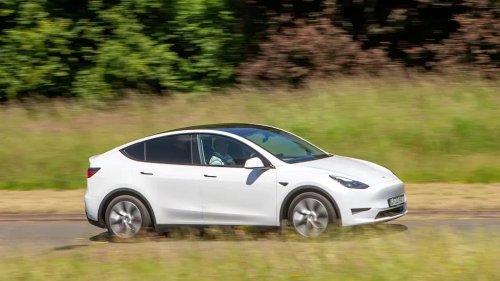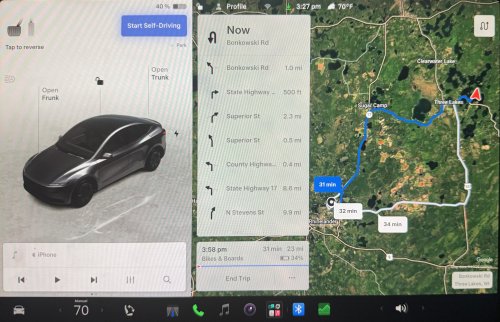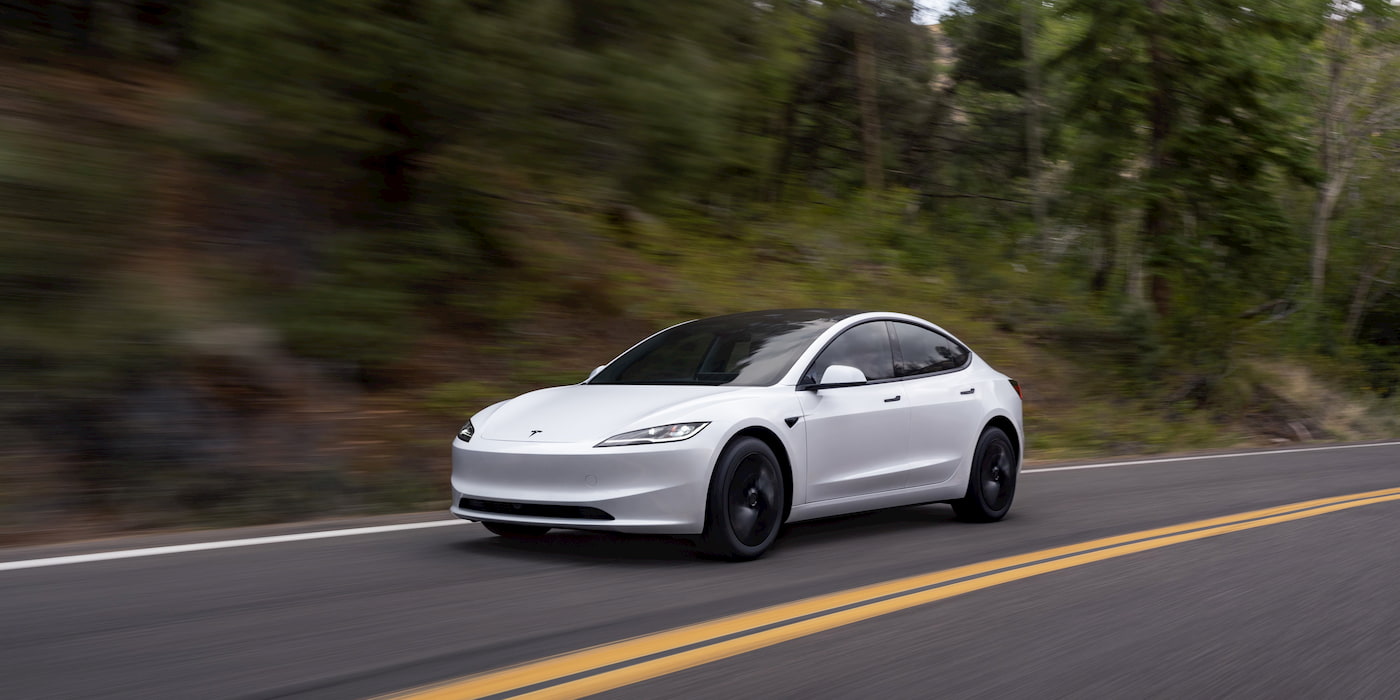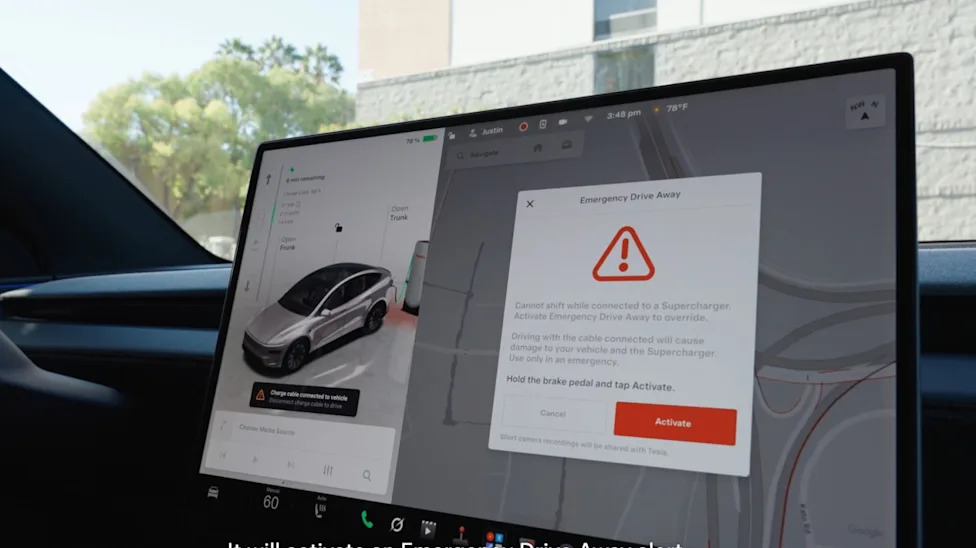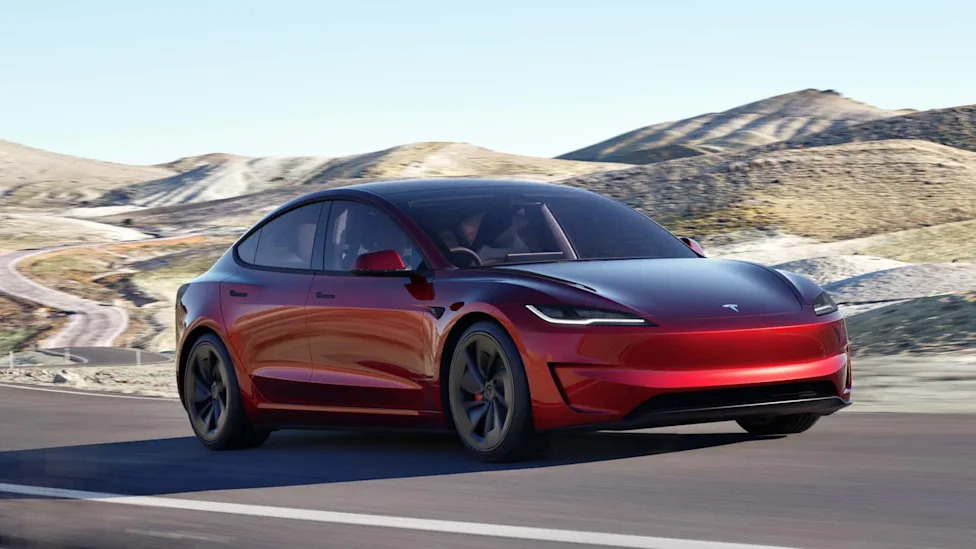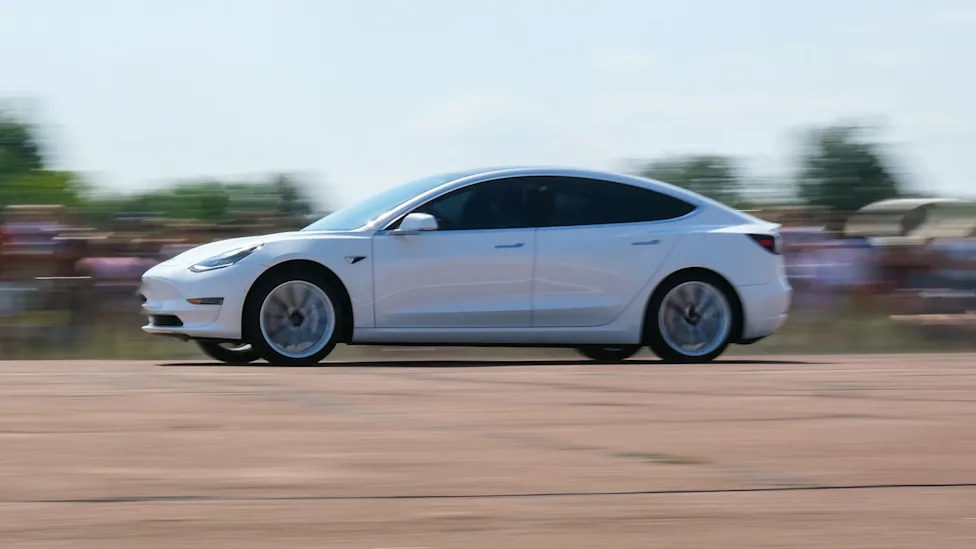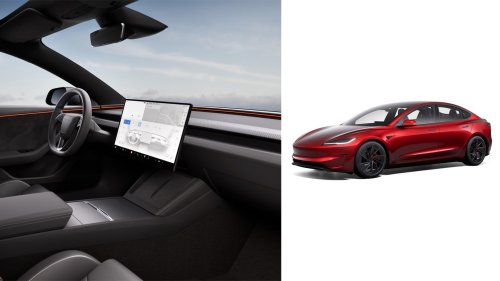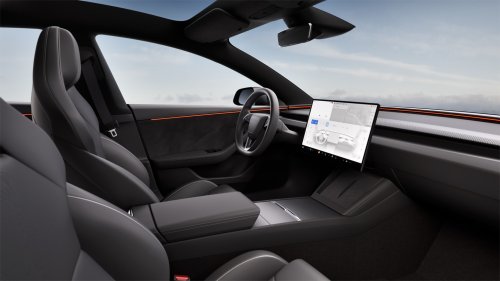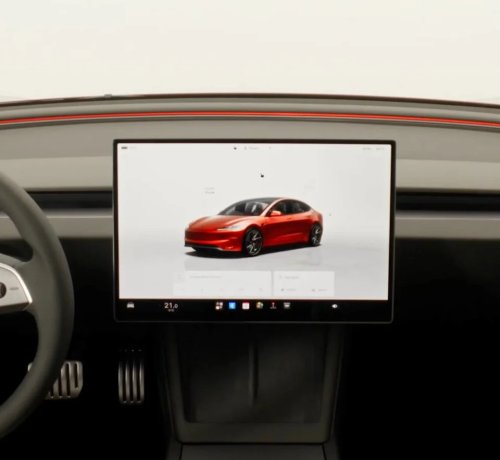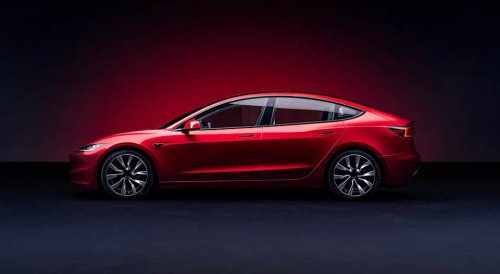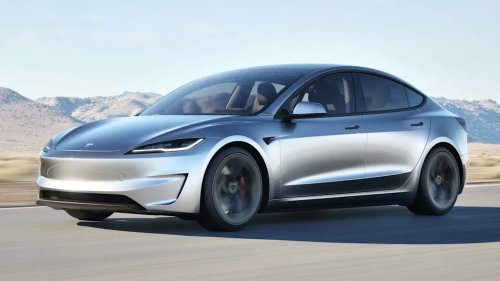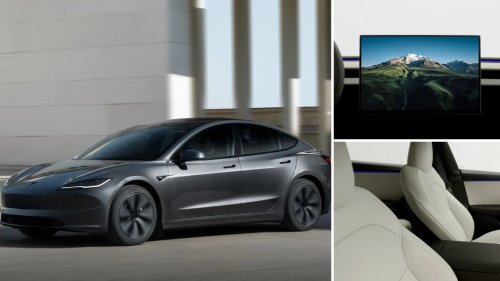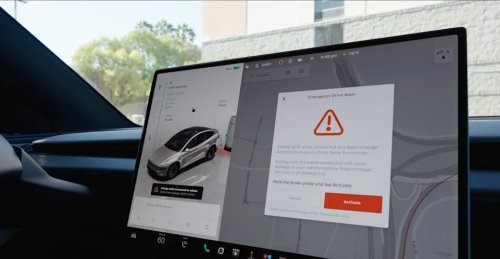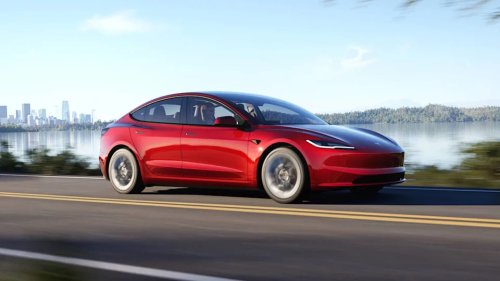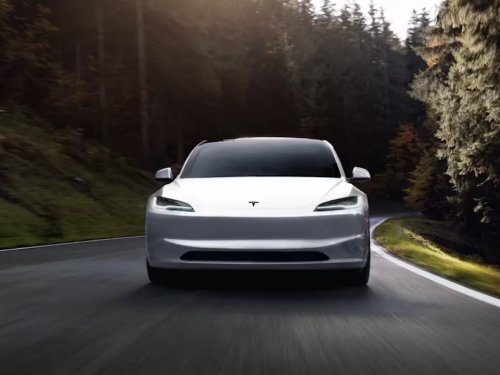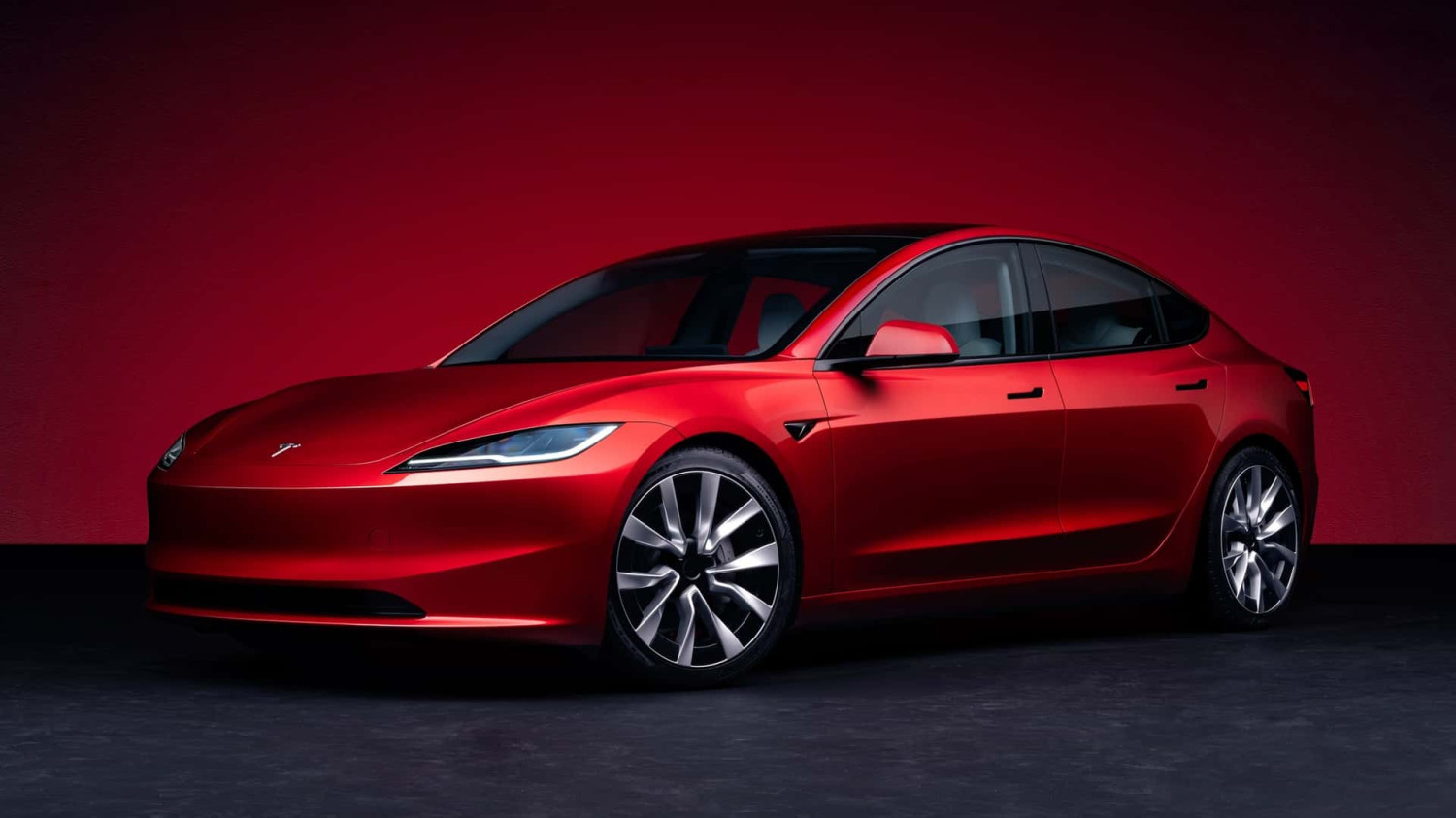
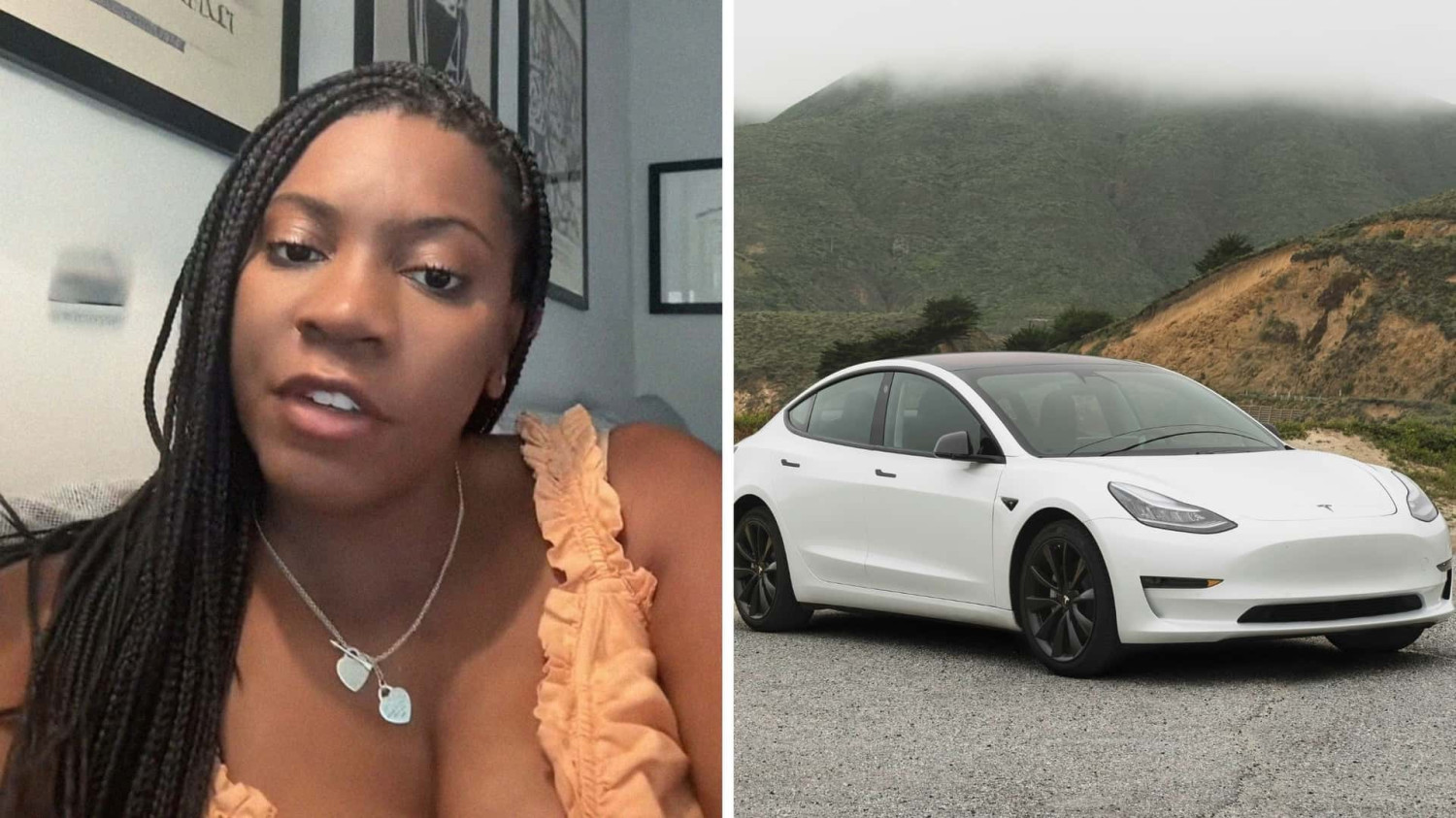


















A Tesla driver was able to customize the lock sounds in her EV. Now she’s offering advice on how you can do the same. TikTok creator Jaz (@jaz.notjazz) demonstrates the feature in a video that has gone viral. Her video begins with her standing outside her white Tesla Model 3 with one of its doors open. Then she shuts the door and walks to the front. Its lights begin to glow, and its side mirrors collapse inwards. As they do, the car emits a sound that Disney Channel viewers may recall: Miley Cyrus as Hannah Montana saying, "Oh yeah," as the car locks. She explains the custom sound in a text overlay. "Changed my lock sound to Hannah Montana transition," Jaz writes. In the caption she adds, "Free will and forgetting that I can even change the sound on my car … if you know me this is SO on brand for me." Her video has over 21 million views. Gallery: Tesla Model 3 2025 How to Customize Tesla Lock Sounds Motor1 has previously detailed how Apple CarPlay users have discovered ways to get their vehicles to play custom sounds. Tesla owners have also discovered ways to get their own car lock sounds. In a video, YouTuber Techplover shows off his own Super Mario Bros. theme custom lock sound on his blue Model 3. OWNERSHIP STORIES Viral stories from across the web Our team of experts tracks what owners are saying about car-shopping, repairs, the daily driving experience and more on social media. Techplover then offers advice on how to do the same with your Tesla. First, pick a sound. Then press the car icon located on the bottom left taskbar area on the infotainment screen. Next, tap the "Safety" dialog box and disable Sentry mode on the car. Then, Techplover instructs drivers to retrieve the USB flash drive from the vehicle’s glove box, save the file to the root directory, which is called "TESLADRIVE," and rename the sound file to "Lockchime.wav." How to Set a Custom Lock Sound on Your Tesla Next, plug the flash drive back into the Tesla’s glovebox’s USB slot. To ensure the sound plays whenever the car locks, re-enable Sentry mode. Then tap the "three-dot menu" on the bottom taskbar of the Tesla’s infotainment display. Next, tap "Toybox" and select the "Boombox" option. "And in the Boombox, one of the options is ‘lock sound,’" he says. This toggle is located under a dialog that reads "Play Current Media." Beside it, the Tesla’s system indicates that the sound is coming from the USB media source. "You check that, click the drop-down here, and as you can see, you have a few lock sounds to pick from," he says. He taps the "USB" text on the screen, which brings up several different options for drivers to pick from. There are pre-installed sounds offered by Tesla, ranging from "Old School Horn" to "Applause." There’s also a variant that allows people to use any sound from the file they placed on their USB flash drive. Select that. Florida-based automotive business Tesla Wraps Fort Lauderdale also posted a text guide on how to customize one’s lock sounds in their Tesla. It features a near-identical step-by-step process outlined by Techplover. However, the company points out that Tesla drivers need to ensure their vehicles have the Boombox feature. It recommends ensuring their car is updated to the latest software if they encounter any issues playing their custom lock sounds. Other problems can occur if the file size is too large, and if users attempt to use a file that isn’t in the .wav file format. Additionally, drivers should double-check their volume settings to ensure the lock sound is loud enough for them to hear, Tesla Wraps Fort Lauderdale suggests. Motor1 has reached out to Tesla via email and Jaz via TikTok direct message for further comment. We'll update this if either responds. We want your opinion! What would you like to see on Motor1.com? Take our 3 minute survey. - The Motor1.com Team