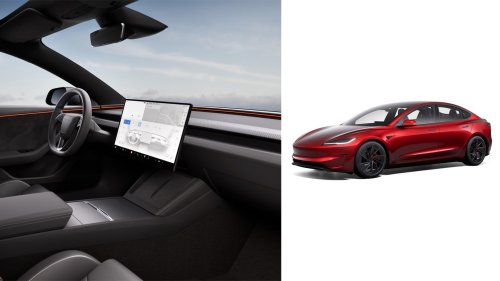
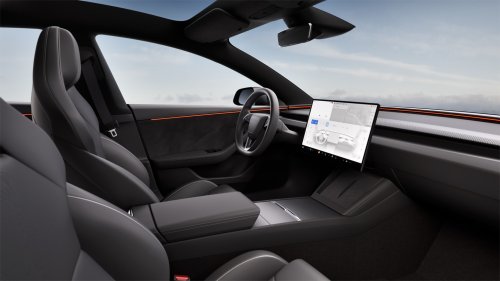
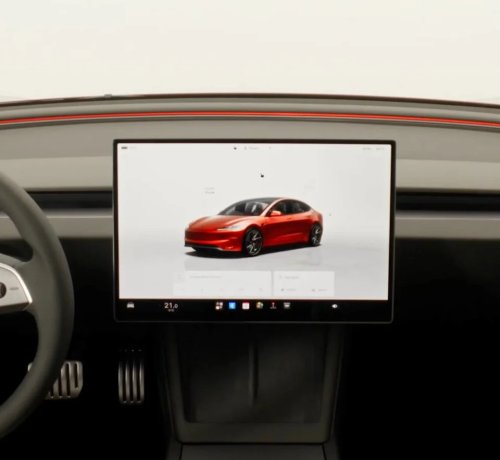
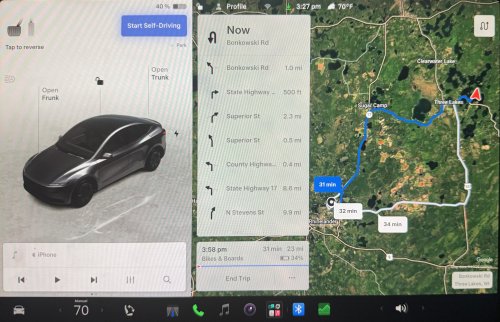
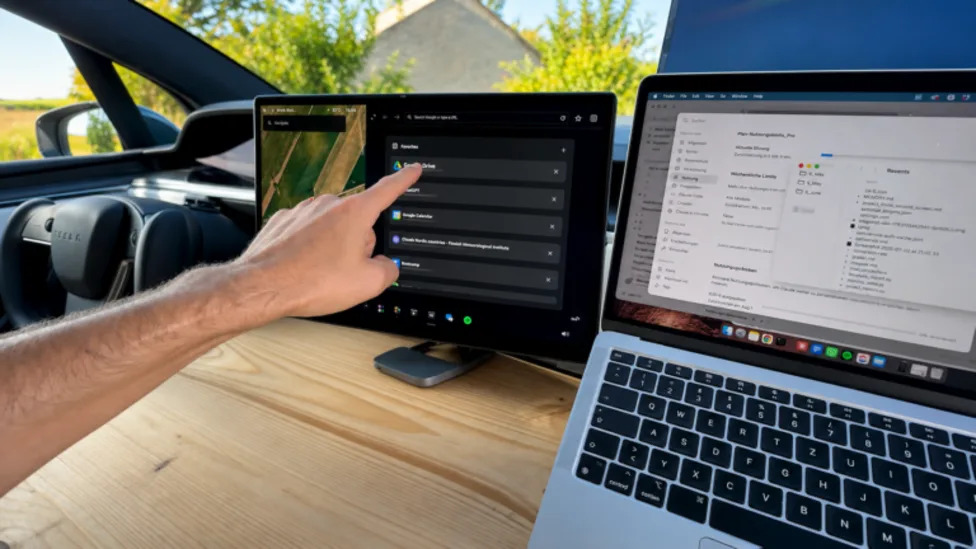
Tesla Owner Turned His Car’s Touchscreen Into a MacBook Second Monitor — And It Actually WorksA YouTuber who goes by Tesla Camper has been running a mobile office out of his Tesla Model X for a while now, and most of it is exactly what you'd expect – laptop on the passenger seat, USB-C charging off the car's power system, Starlink Mini wedged into the falcon wing door for off-grid internet. The part that's actually surprising is what he did with the 17-inch center display.He got his MacBook to treat it as a second monitor.The setup isn't a plug-and-play solution. Tesla's infotainment system has no app store and won't accept sideloaded software, so the only realistic entry point is the built-in browser. The problem is that Tesla's browser actively blocks connections to private IP address ranges – the 192.168.x.x addresses a MacBook would normally broadcast on a local network – which rules out most of the obvious approaches. Tools like Luna Display, Duet, and Sidecar have all been tested against the Tesla browser by various developers, and none of them work, per a comparison published by the SideDisplay team in April 2026.How the Connection Actually Gets MadeJoel's workaround chains together a few macOS features that most people never touch. A phone connects to the MacBook over USB and shares its cellular data connection with the laptop. That same phone then joins the Tesla's own local Wi-Fi network, which the car broadcasts internally. With the phone bridging both, the MacBook can reach the Tesla's network without going through the blocked local IP range directly.AdvertisementAdvertisementFrom there, Joel used an AI coding tool – Claude Code – to write a small custom script that runs on the Mac. It sets up a virtual extended display sized to match the Tesla screen's resolution, points a VNC server at that display specifically, runs a websockify bridge to convert the VNC signal into WebSocket traffic the browser can actually handle, and serves a noVNC client locally. On the Tesla side, he opens the browser, navigates to a saved bookmark pointing to the Mac's IP and port, and the display appears. Drag a window to the right edge of the MacBook screen and it shows up on the Tesla display – with some lag, which he cheerfully acknowledges.Based on threads in the Tesla Motors Club forums, the compressed-image stream delivers a frame rate that falls in the range of 5 to 15 FPS. That's fine for a Slack conversation or a Google Sheet. It is not fine for anything that moves quickly. Joel notes the lag himself with a laugh.There's a Cleaner Commercial Option TooFor anyone who doesn't want to wrestle with VNC configs and websockify, a commercial tool called SideDisplay handles most of this automatically. Developer S. Lee described the goal on Tesla Motors Club earlier this yeare: "I ended up building a small app that turns the Tesla touchscreen into a wireless second monitor for my laptop. Not screen mirroring, but an actual extended display. You can drag windows over to the Tesla screen like you would with any external monitor. It works through the Tesla's built-in browser using WebRTC, so no hardware mods or cables needed." Lee added that he'd been running it daily on his own Model X. Solutions that rely on WebRTC technology, such as SideDisplay, achieve latency of roughly 100ms – an improvement in smoothness over the manual VNC approach.SideDisplay is available for both macOS and Windows, supports up to three simultaneous displays, and recently shipped v1.9.0 for Mac with connection improvements. A separate app, DashDisplay, markets itself as the only no-hardware option for using a Tesla as a laptop second screen.AdvertisementAdvertisementOne thing worth being clear about: Because Tesla blocks non-essential content from appearing on the front display when the vehicle is in motion, the setup can only be used while the car is stationary. Think Supercharger stops, scenic overlooks, or any situation where you want more screen real estate without unpacking an external monitor. The 17-inch rotating screen in the Model X, with its 2,200 × 1,300 pixel resolution, lends itself especially well to this type of setup. The Model 3 and Y's 15.4-inch screens at 1,920 × 1,200 work too, and the refreshed Model Y Juniper bumps that up to a 2,880 × 1,920 panel with a 120Hz refresh rate, per icartea.com.The concept of using Tesla's browser as a display target has been kicking around since at least 2018, but the tooling has gotten significantly less painful. Whether that justifies calling your Model X a "mobile office" is between you and your accountant.



















 +2 others